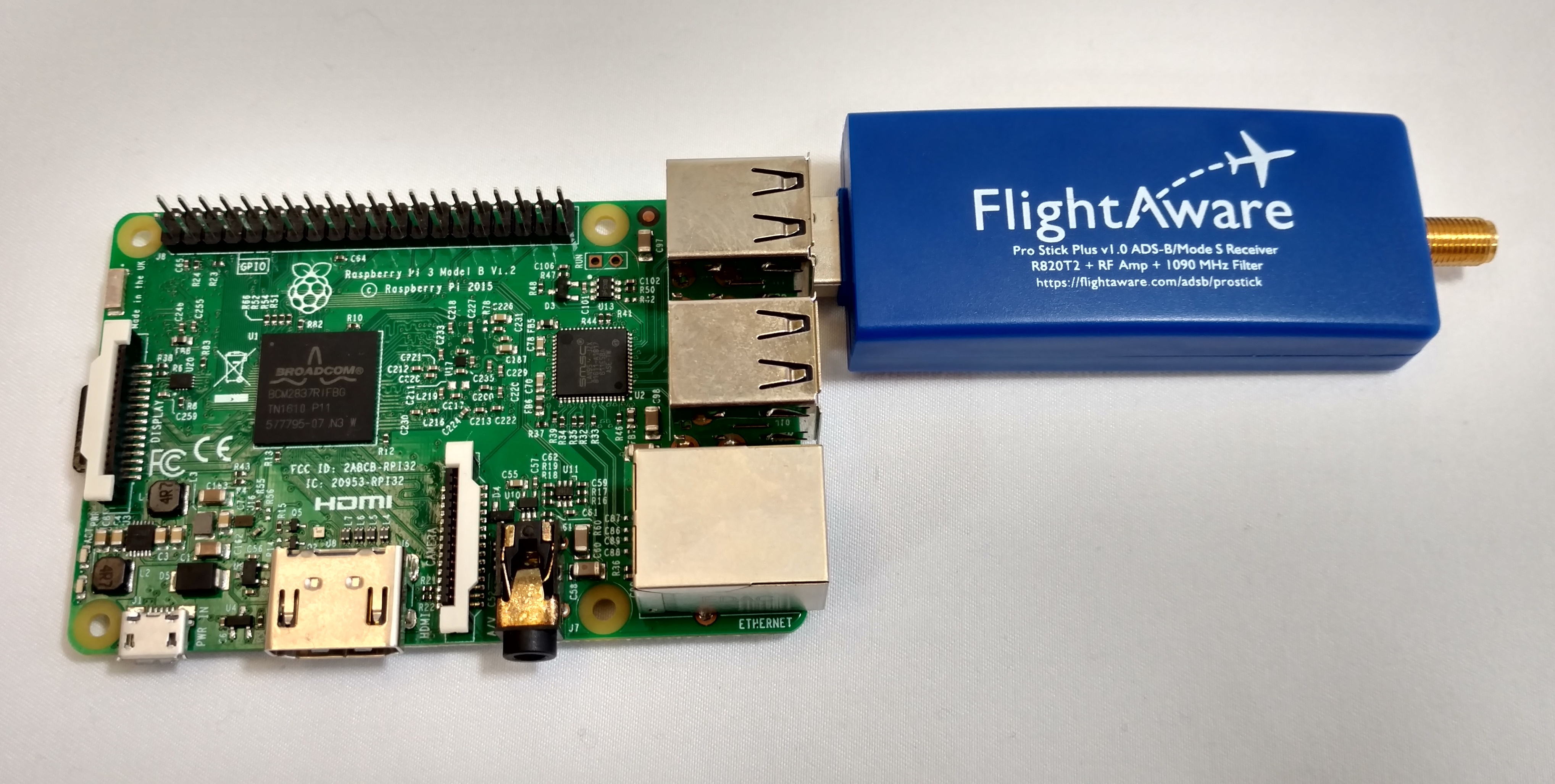
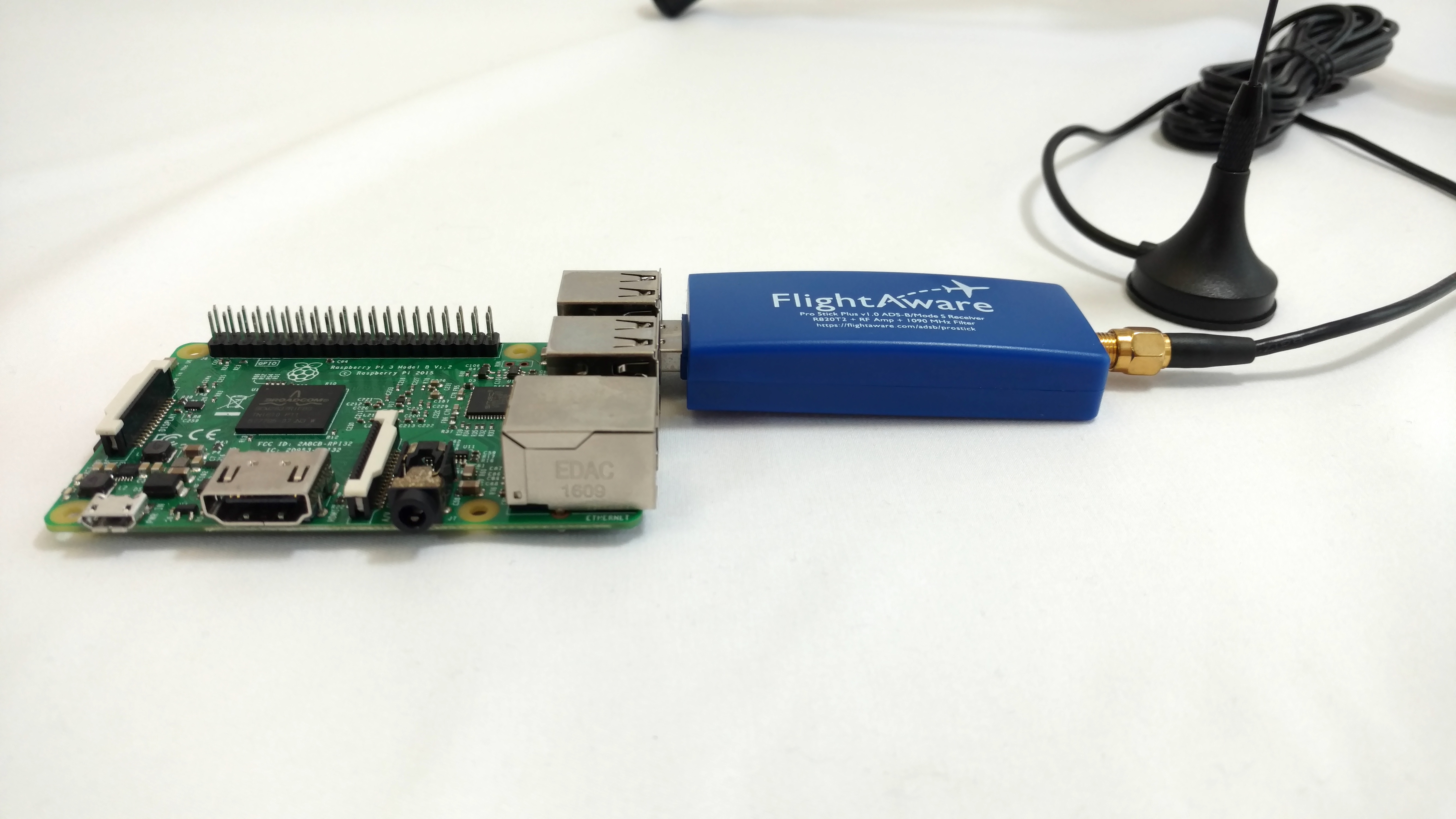
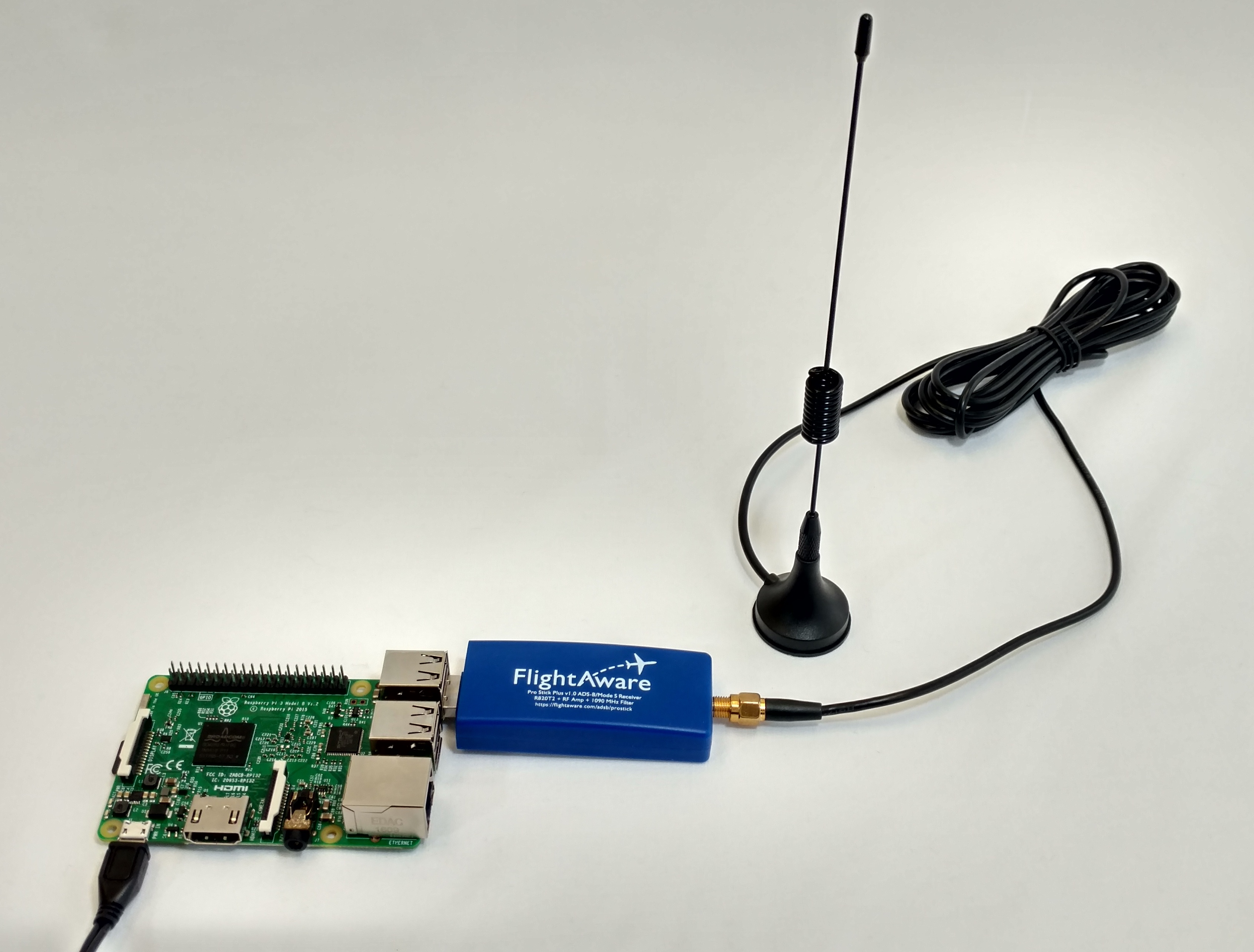
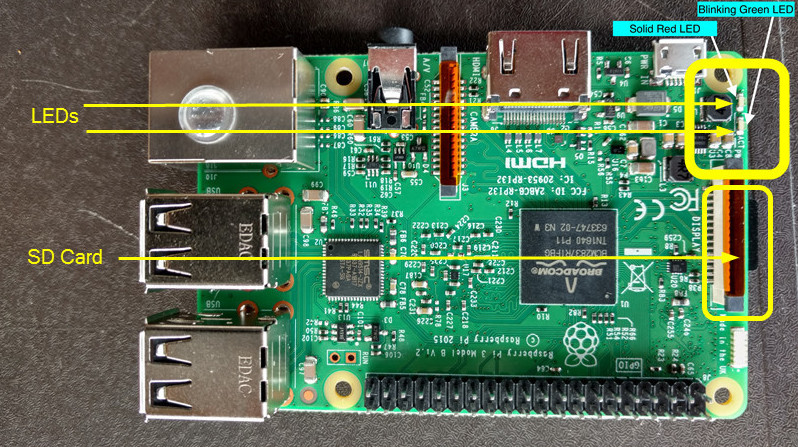
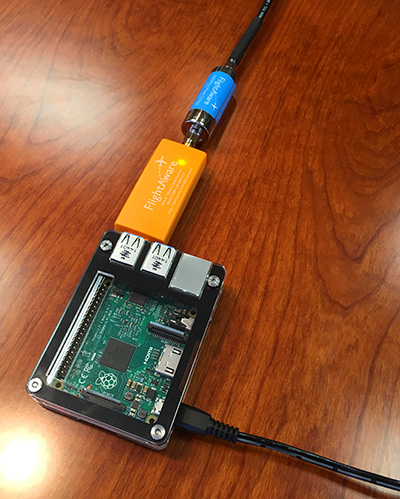
귀하 장치가 일단 실행되면, 다음을 실행하십시오:
Option 1
Find and claim the FlightFeeder device through Bluetooth using the FlightAware iOS App or using the FlightAware Configure Page
(Keep in mind, the Bluetooth method will only work for devices with PiAware image flashed on to the SD card, not manually installed.)
Option 2
Manually claim your FlightFeeder device online through your FlightFeeder's IP address.
If using an LCD Screen or if able plug in the Raspberry Pi device into a monitor through an HDMI Cable, the FlightFeeder IP address can be found through the PiAware UI display.
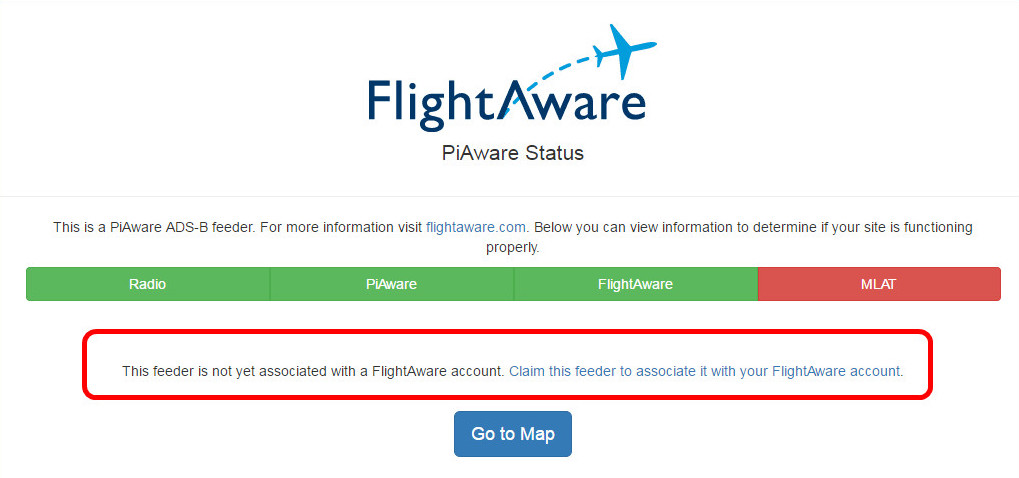
While on your computer, look up the local IP address assigned to your PiAware device through your router/firewall and search for the assigned IP address in a browser on the same network. If the device hasn't been claimed a link to claim the PiAware device will display.
Option 3
If you have command line access you can get the FlightFeeder's unique ID using the command: With the unique ID for the feeder you can enter it into the end of the URL below in place of the x's:
cat /var/cache/piaware/feeder_id
With the unique ID for the feeder you can enter it into the end of the URL below in place of the x's:
https://www.flightaware.com/adsb/piaware/claim/xxxxxxxx-xxxx-xxxx-xxxx-xxxxxxxx
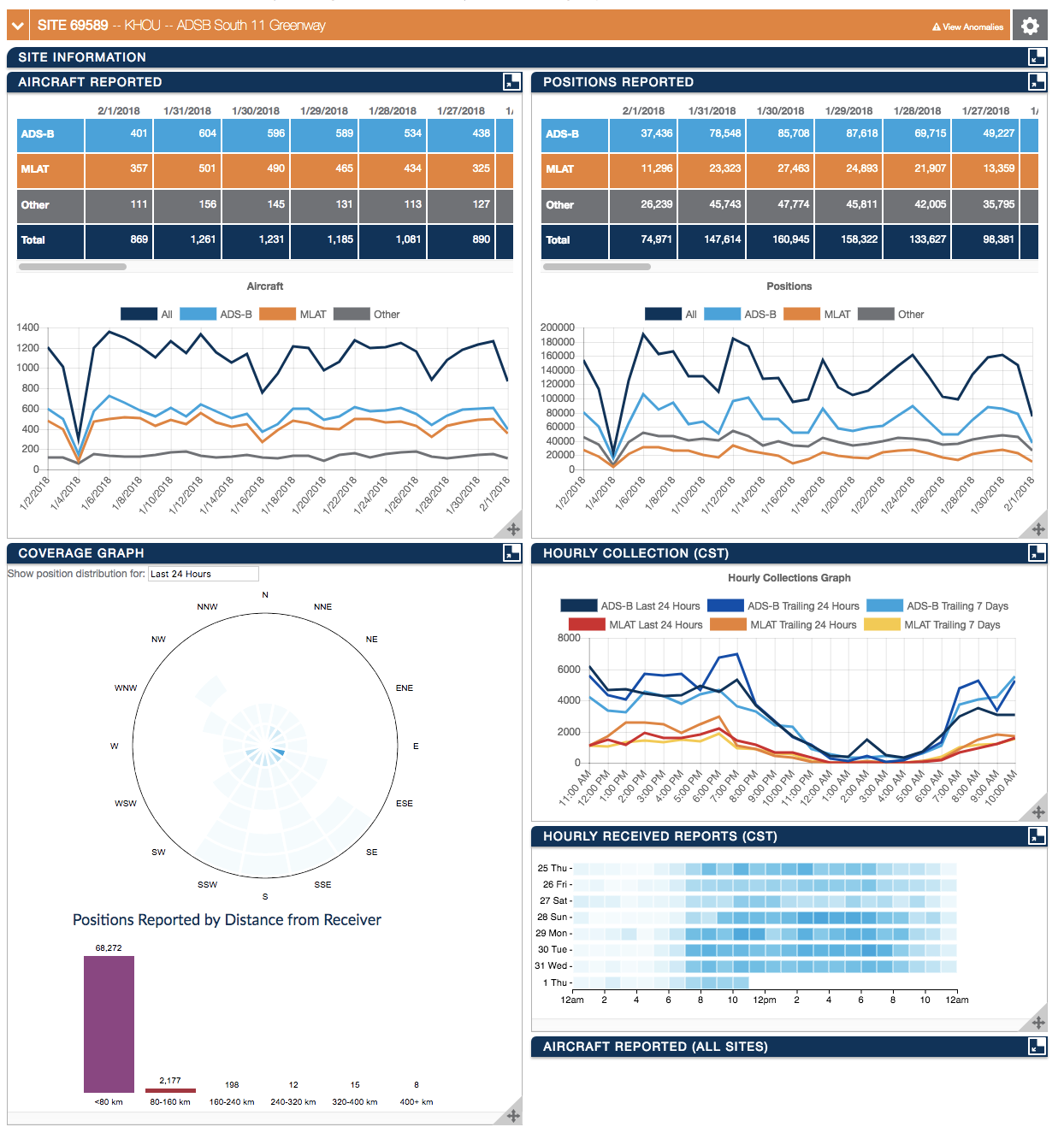
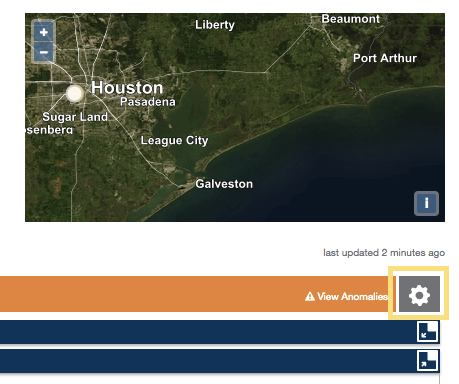
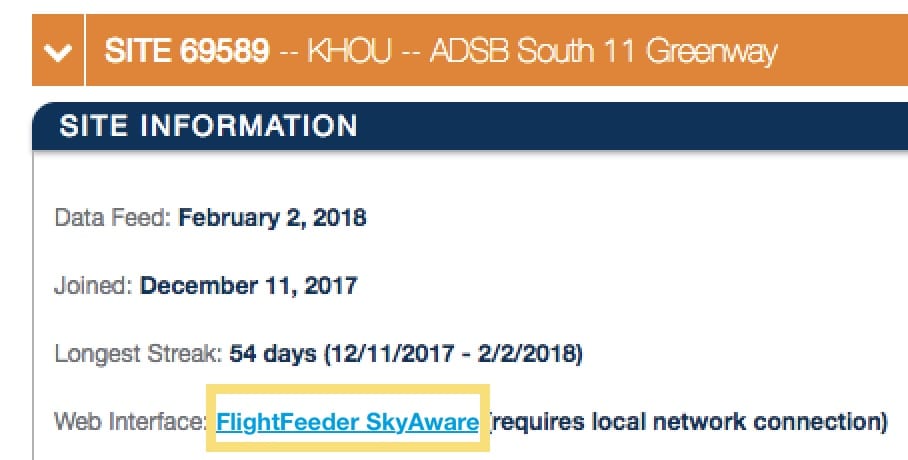
5 분 후에 장치가 클레임한대로 표시되지 않으면 장치를 다시 시작하십시오. 그래도 여전히 작동하지 않으면 Wi-Fi 설정(Wi-Fi를 사용하는 경우)이 올바른지 다시 확인하십시오. 마지막으로 ADSBsupport@FlightAware.com으로 연락해 주십시오. 통계 페이지(아래 링크)를 확인하여 클레임되었는지 확인하십시오.